
Support & FAQ
Find answers to common questions about iClara PFM — backups, exports/imports, search, notifications, transfers. If you can't find what you need, contact soporte@iclara.app.
How do I create a backup of all my iClara PFM data?
Steps:
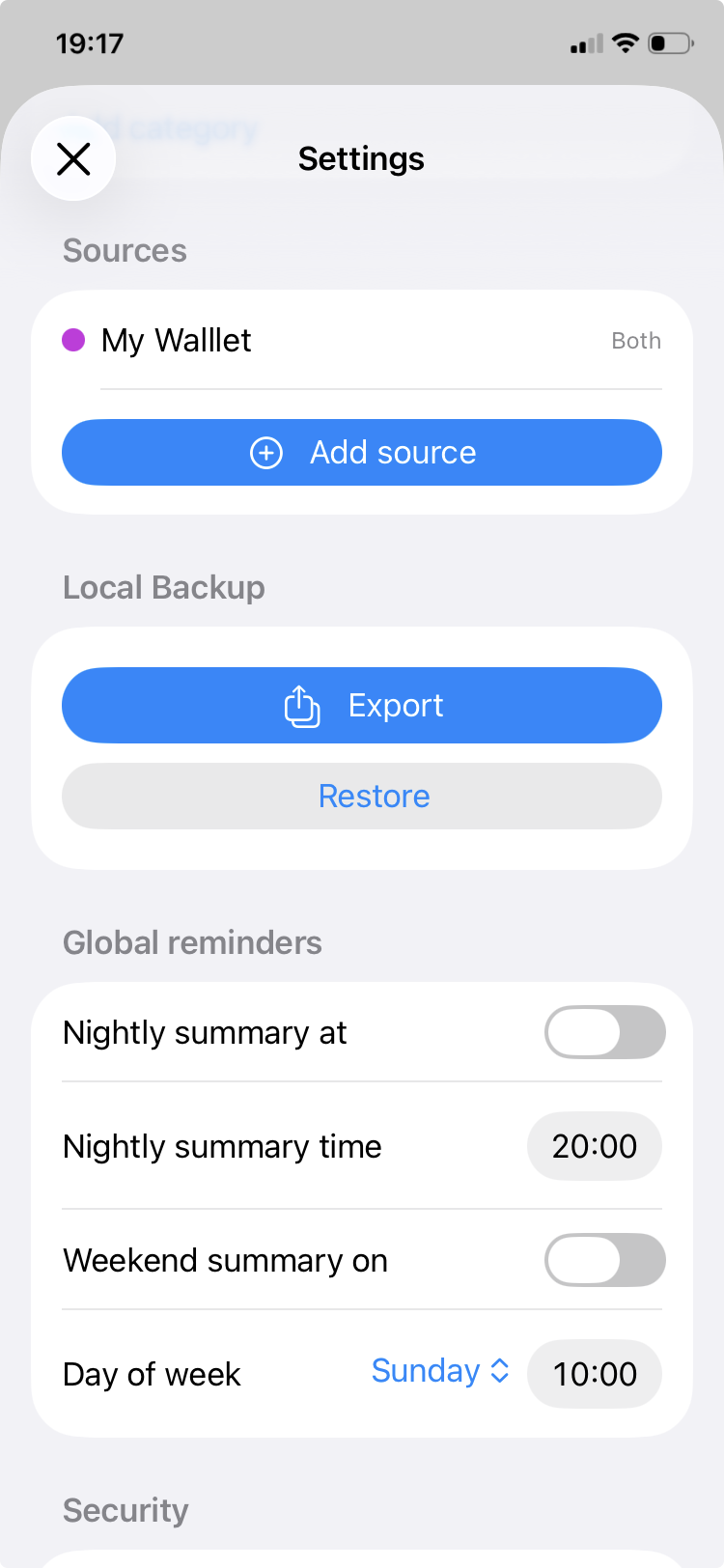
- Open iClara PFM → Settings → Local Backup.
- Tap Export. Creates JSON backup and opens share sheet.
- Choose Save to Files (iCloud/On My iPhone).
Notes:
- Backups include sources, categories, transactions, reminders, lock.
- Private — only saved where you choose.
- Filename: iClaraPFMBackup-YYYY-MM-DDTHHMMSS.json
How do I restore a backup?
- iClara PFM → Settings → Local Backup → Restore.
- Select JSON backup from Files.
- Confirm replace/merge — overwrites/merges local data.
Important: Replace overwrites; merge skips duplicates. Defaults use localized names.
My import failed with 'invalid backup file' — what could be wrong?
Causes/steps:
- Not iClara PFM JSON — confirm exported from app.
- Corrupted — re-export from original.
- Open in text editor to verify JSON.
How do I delete sources or categories?
Sources:
- Settings → Sources → Swipe left → Delete (orphans transactions).
Categories:
- Settings → Categories → Swipe left → Delete (reassigns to "Other"). Defaults can be restored.
App ensures "Other" category always exists.
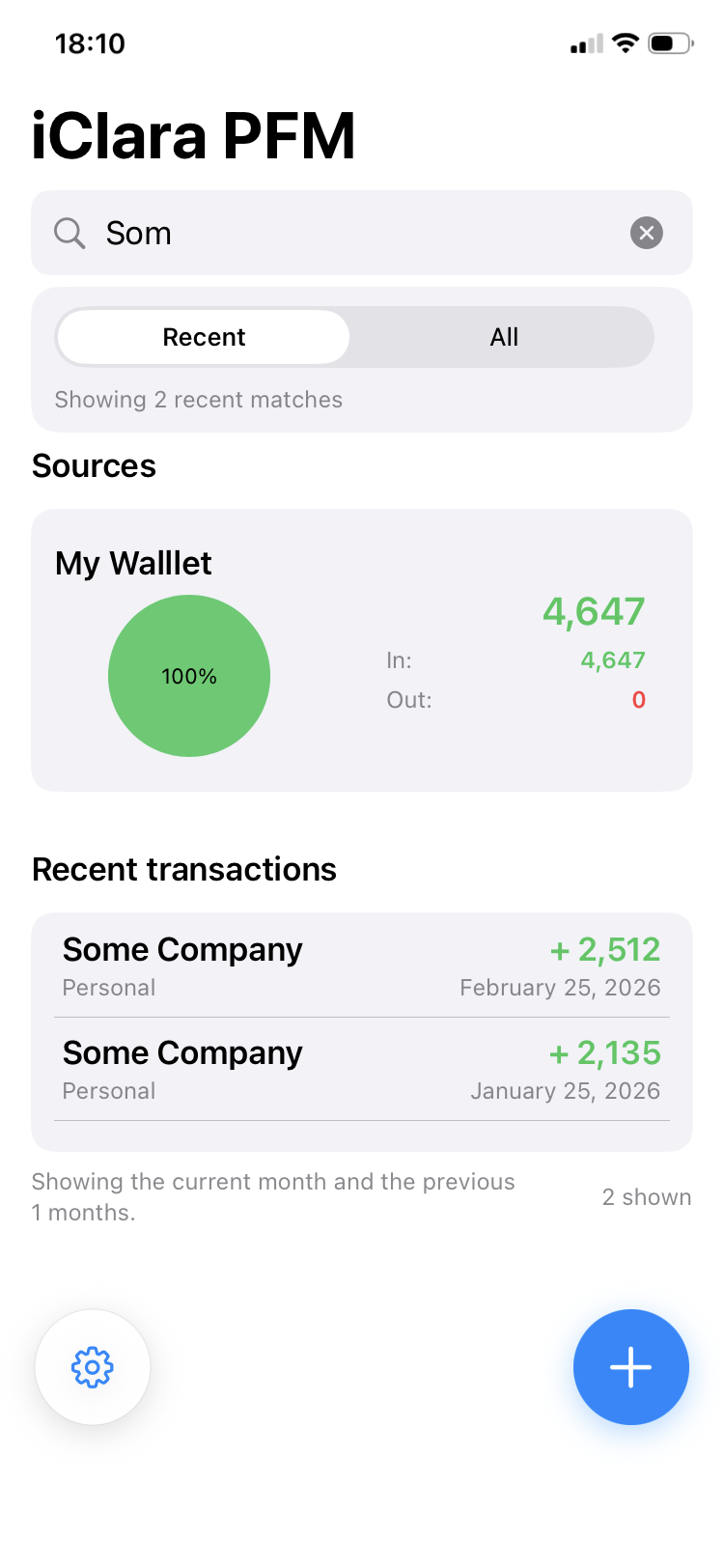
Search not showing results — what to do?
- Ensure 3+ characters typed.
- Toggle Recent/All scopes.
- Pull-to-refresh dashboard.
- Check recent months filter (Settings → Home Filter).
Search matches vendor/note/category/date/amount.
Notifications/reminders not appearing?
- iOS Settings → Notifications → iClara PFM → Allow.
- Settings → Global Reminders → Verify Nightly summary and/or Weekend summary are enable.
- Settings → Global Reminders → Verify times saved.
- Disable Do Not Disturb/Focus.
- Toggle reminder → reschedules.
How do transfers work?
Transfers:
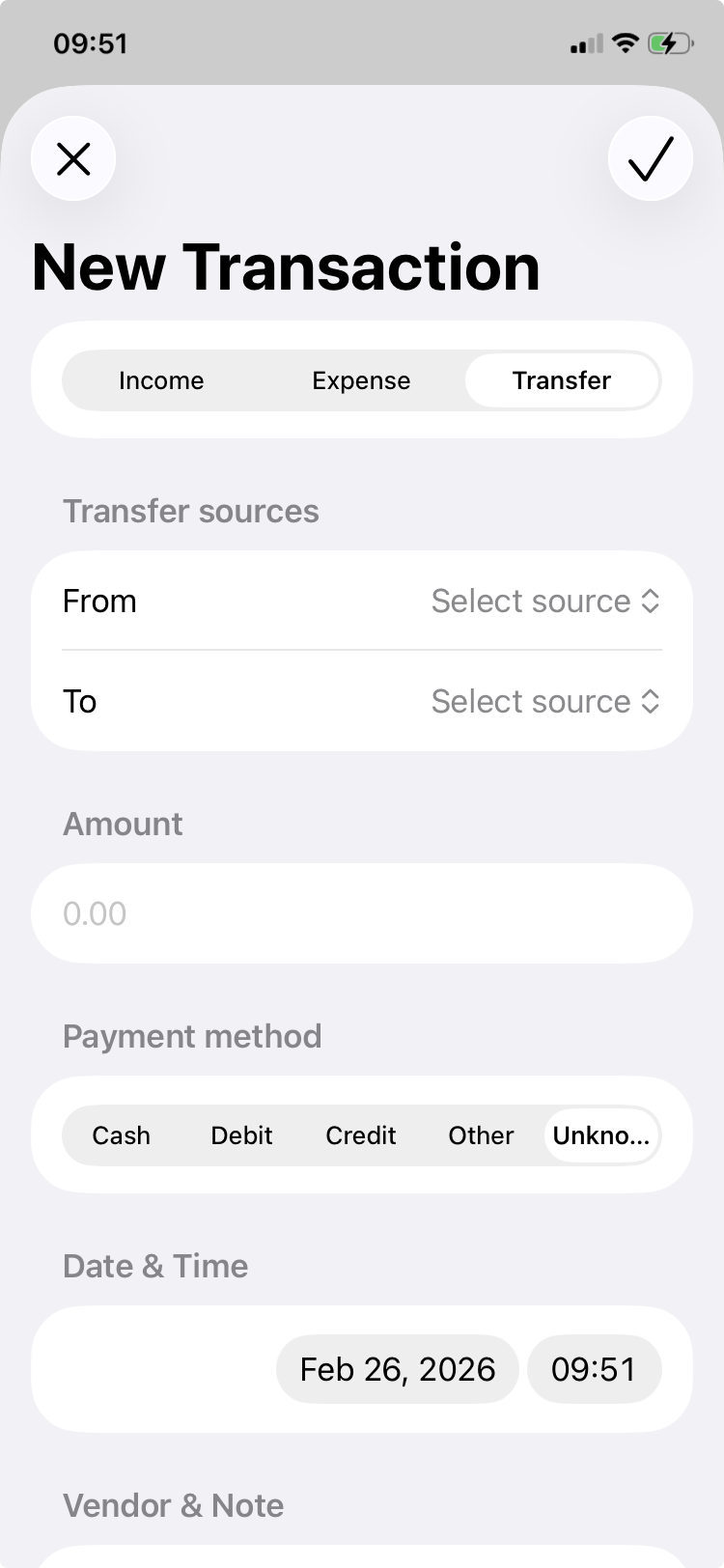
- 2+ sources required.
- Select From/To, amount/date/note/vendor/payment (outgoing).
- Atomic: both sides created/updated/deleted together.
- Edit/delete both.
How do MSI installments work?
Create an expense and toggle Split into installments. Choose the number of payments (2-36) and the purchase date. All N payments are generated at save time with dates aligned to the source's billing cut day (monthly). Dates are read-only — they follow bank cycle rules.
Edit scope: Entire plan — changes count/date for all members. Single installment — updates only that row's metadata (amount, category, note).
Conversion: Turning an existing plain expense into installments shows a confirmation dialog; the original transaction is deleted and replaced by N installment rows.
Delete: Deleting an installment member removes the entire plan.
What is the billing cycle cut day?
For expense-only sources (credit cards), you can set a billing cycle cut day (1-28). Period windows in the dashboard and source detail automatically align to cut-day cycles instead of calendar months.
Example: cut day 10 means a cycle runs from the 11th of one month through the 10th of the next. Changing the cut day reschedules open future installments while freezing processed ones.
Why are some color circles crossed out in the picker?
The color picker shows all 15 palette colors but marks those already used by another source with a crossed-out icon — each source gets a unique color automatically.
Version History
-
1.31
MSI installments (monthly, cut-aligned). Billing cycle cut day for expense-only sources. Commitment balances (available credit = limit – outstanding). Installment manager with reschedule on cut change. Edit scope (entire plan / this installment). Conversion confirmation when turning a plain expense into installments. Unique source colors with expanded 15-color palette and used-color marking. Credit usage bar (horizontal green/red) for expense-only sources. Bug fixes and stability improvements.
-
1.21
Smart source deletion with replacement.
When deleting an account/wallet, you can now pick a replacement source for regular income/expense transactions — they're reassigned with a note showing the original source. Transfers involving the deleted source are fully removed (both legs). If no sources remain, "My Wallet" is recreated automatically.Improved source ordering.
"My Wallet" now consistently appears first in the main list, followed by income-only, both, and expense-only sources (alphabetically within each group). Works correctly across all locales.Stability fixes.
Fixed a crash when deleting the last source and when swiping to delete in the sources list. -
1.2
Improved charts and new visible Balance. Pie charts now show the period balance in the center (“This period”) and a real Balance row (including transfers) with conditional color. Source rows display the updated real balance. Totals are more accurate and consistent across all source types.
-
1.1
Charts updated for a clearer picture of your money.
Pie charts now show real progress against your spending limit per source, including debt payments. Balances and totals are more accurate and consistent across all source types — so what you see always reflects what you have.
Other troubleshooting tips
- Restart app: Force-quit & reopen.
- Refresh: Pull-to-refresh dashboard/charts.
- Update: Latest App Store version.
- Reinstall: Backup first if needed.
Contact support
Can't resolve? Email support with details.
Email: soporte@iclara.app
Include:
- App version (Settings → About)
- Device/iOS
- Issue steps