
Support & FAQ
Find answers to common questions about iClara TM — backups, exports, recurring goals, notifications and how to share diagnostic logs for troubleshooting. If you can't find what you need, contact soporte@iclara.app.
How do I create a backup of all my iClara TM data?
Steps:
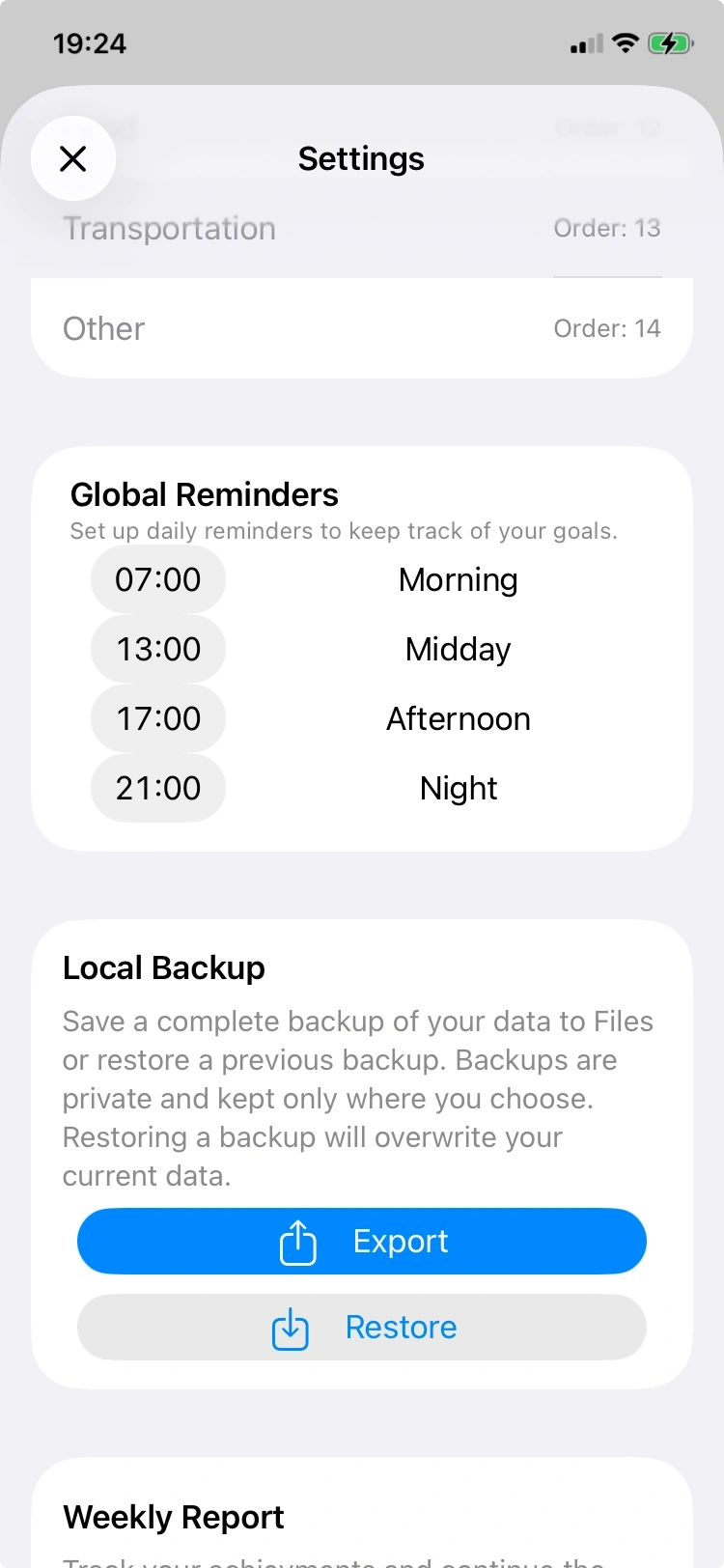
- Open iClara TM and go to Settings → Local Backup.
- Tap Export. The app will create a JSON backup file and open the system share sheet.
- Choose Save to Files and select a secure folder (iCloud or On My iPhone).
Notes:
- Backups contain categories, goals, tasks, reminders and recurrence controls.
- Backups remain private — they are only saved where you choose.
- File name format: iClaraTMBackup-YYYY-MM-DD-HH-MM-SS.json
How do I restore a backup?
- Open iClara TM → Settings → Local Backup → Restore.
- Use the file importer to select a valid backup JSON file from Files.
- Confirm the restore — this will overwrite your current local iClara TM data.
Important: restoring replaces existing local data. If you're unsure, export a current backup first in case you need to revert.
How do I export a single goal as PDF or JSON?
Steps to export a goal:
- Open the goal you want to export in iClara TM.
- Tap the export icon (share) — the Share Goal As... popover appears.
- Choose Share as PDF to create a visually paginated PDF, or Share as JSON to create a structured data file.
- Use the iOS share sheet to send the file via Mail, save to Files, or open in another app.
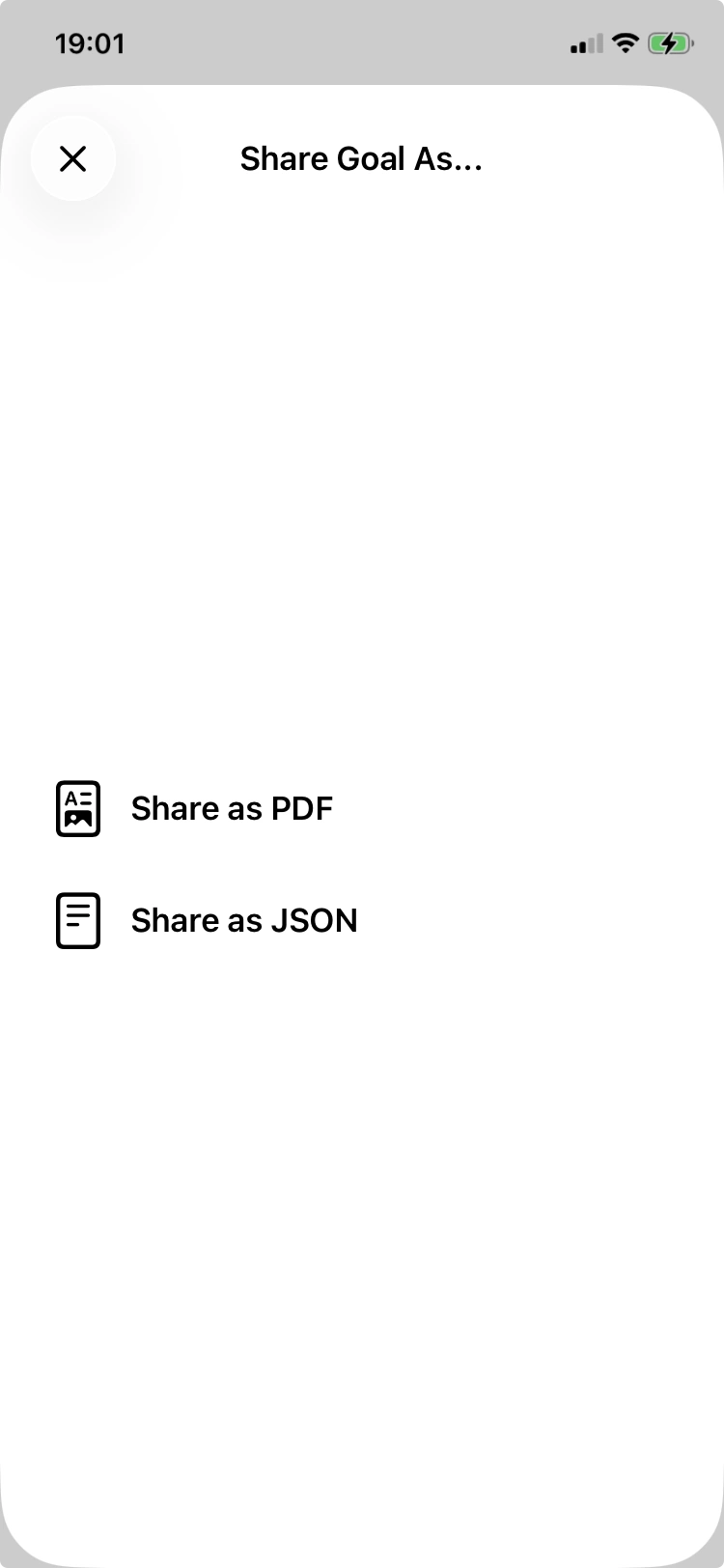
PDF notes: The export attempts to paginate cleanly and avoid cutting list items across pages. For very long goals the PDF may generate multiple pages.
How do I import a single-goal export or an array of exported goals?
Supported import shapes:
- Full backup (entire app export format).
- SingleGoalExport JSON (the format created by the goal export).
- Array of SingleGoalExport (multiple exported goals in one file).
Import behavior:
- Imported goals get new UUIDs and createdAt set to the import time.
- Task statuses will be reset to active and finishedAt cleared where appropriate.
- If a category from the export is not present locally, the importer will try to match by name or create a new category.
If you encounter an invalid backup file message, please confirm the file was created by iClara TM (JSON) and not modified externally.
How do recurring goals and advance warnings work?
Recurrence basics:
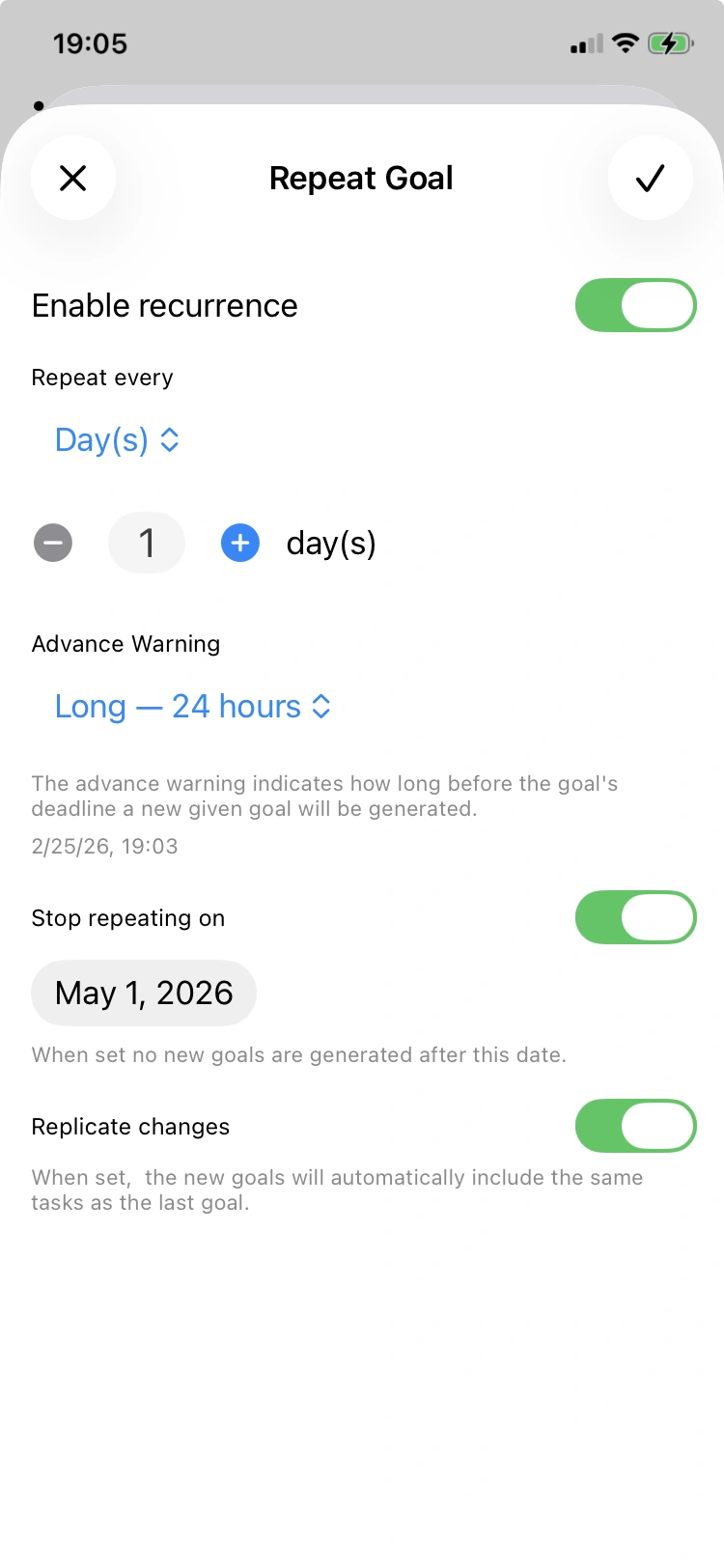
- Recurrence frequency can be Day(s), Week(s) or Month(s).
- Choose the numeric interval (e.g., every 1 day, every 2 weeks).
- Advance Warning controls how far before the deadline the reminder is scheduled:
- Day: Long = 36h; Medium = 32h; Short = 24h (per unit)
- Week: Long = 7 days; Medium = 5 days; Short = 4 days (per unit)
- Month: Long = 1 month; Medium = 21 days; Short = 14 days
- You can enable "Copy all new changes to next occurrence" to propagate edits into the next generated goal occurrence.
Generation & safety:
- iClara TM generates occurrences on a background queue and persists them in batches.
- It avoids creating duplicate occurrences by checking createdAt/deadline closeness.
- If you see unexpected duplicates contact support with your diagnostics log.
Notifications not appearing — what can I do?
- Confirm system permissions: Open iOS Settings → Notifications → iClara TM → ensure Allow Notifications is enabled.
- Open iClara TM → Settings → Global Reminders and verify that reminder times are set and saved.
- Check device Do Not Disturb / Focus modes — they can suppress notifications.
- Ensure that badges/notifications are not disabled by the system notification settings.
If reminders still do not show, try toggling the reminder time or re-saving your reminders — this will cause iClara TM to reschedule local notifications.
My badge count seems incorrect — how is it computed?
Badge calculation (summary):
- iClara TM counts goals that have a deadline in the past and are not finished (tasks not all done).
- It also counts tasks with deadlines in the past that are not done (excluding tasks whose deadline equals the goal deadline to avoid duplication).
- Badge values are clamped to a range of 1…999 when applied to the app icon.
Note: if you recently changed deadlines or statuses, refresh the app (pull-to-refresh on the dashboard) to let iClara TM recompute overdue state and reset the badge.
How do I share the diagnostics log with support?
When we ask for a diagnostics log, here's how to create and share it:
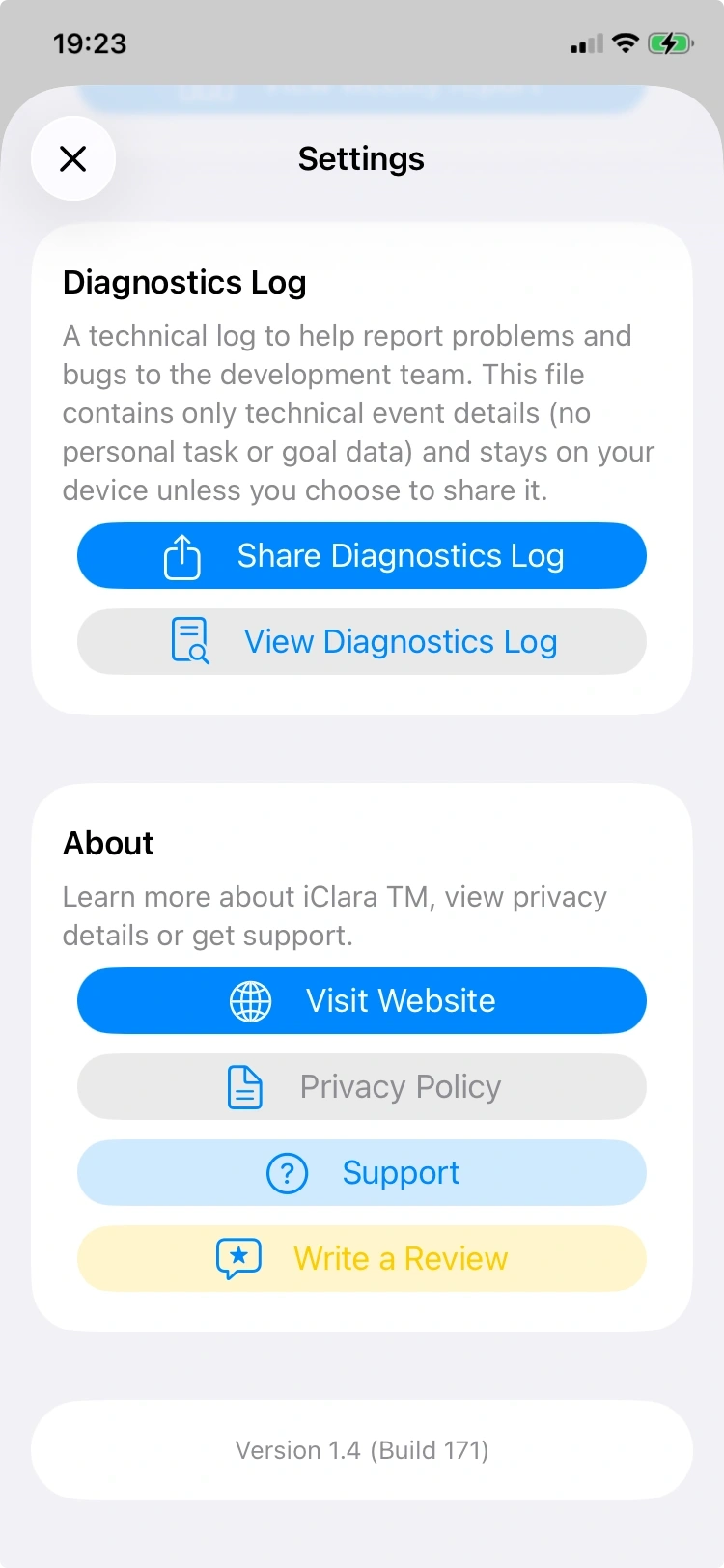
- Open iClara TM → Settings → Diagnostics Log.
- Tap Share Diagnostics Log. The app creates a temporary copy of the current log.
- Choose Mail (or another sharing destination) in the system share sheet and send the file to soporte@iclara.app.
Recommended email template:
Subject: iClara Support — [short issue summary]
App version: 1.0 (Build 119)
Device: iPhone (model)
iOS: 16.x
Description:
[Describe the problem you are seeing, steps to reproduce and when it started]
Attached: diagnostics log (iClaraTMLog-YYYYMMDD-HHMMSS.txt)
The diagnostics log contains only technical events for debugging and intentionally does not include personal goal/task text. Still review before sharing if you prefer.
My import failed with 'invalid backup file' — what could be wrong?
Possible causes and steps:
- The file is not a JSON backup generated by iClara TM. Ensure the file was exported from iClara TM or is in the supported format.
- The file may be corrupted or truncated — try exporting again from the original device and re-import.
- If the file came from another source, try opening it in a text editor to verify it's valid JSON.
If you're stuck, export your diagnostics log and send it along with the import file to soporte@iclara.app for help.
How do categories and colors work — and what if a color is unavailable?
Categories
- iClara TM provides built-in categories (Personal, Family, Home, Work, etc.). You can create custom categories in Settings.
- Categories have an order used to present them in lists; you can reorder categories in Settings.
Colors
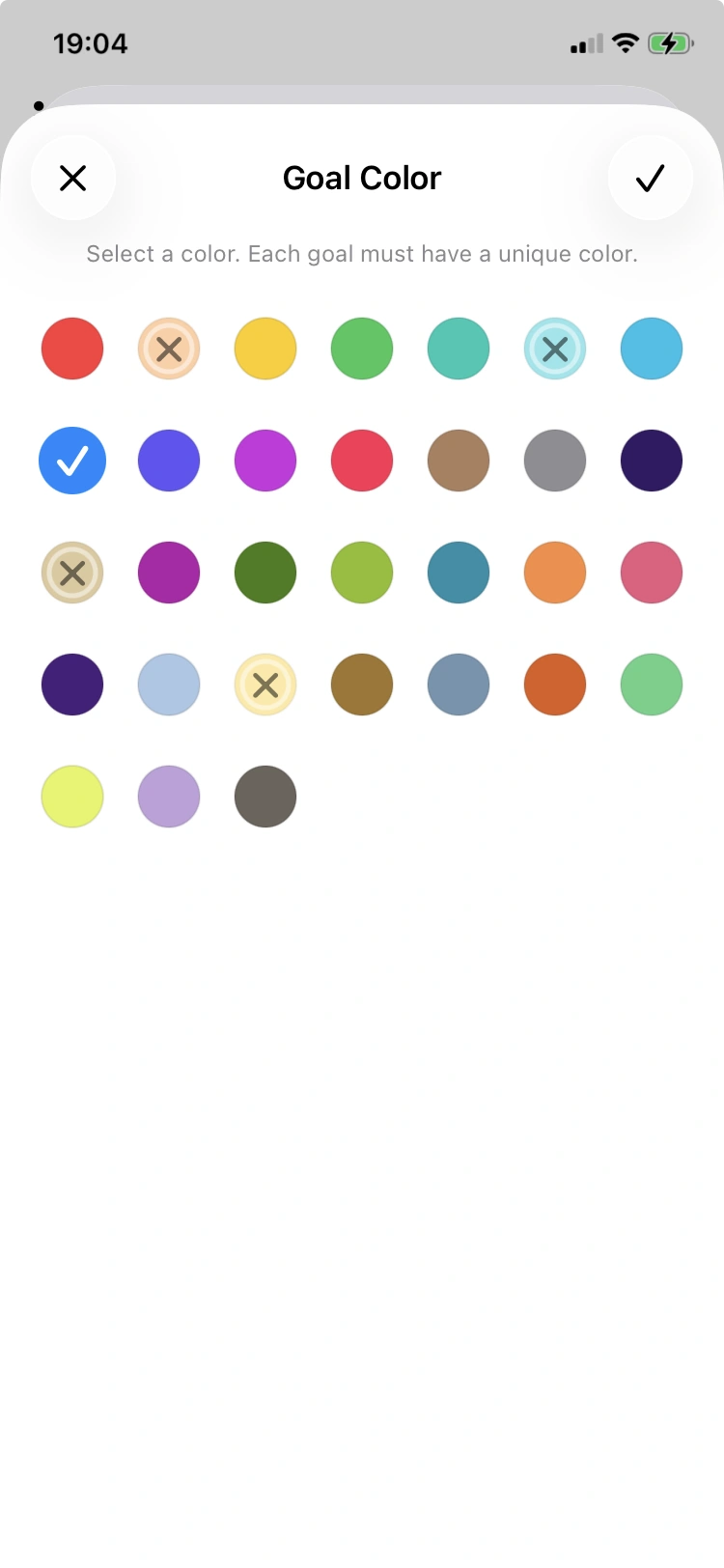
- Each active goal is encouraged to use a unique color to help visual scanning.
- If a color is used by another active goal, the color chooser will mark it as unavailable (an X overlay); you can still re-use a color for an existing goal by selecting it while editing that goal.
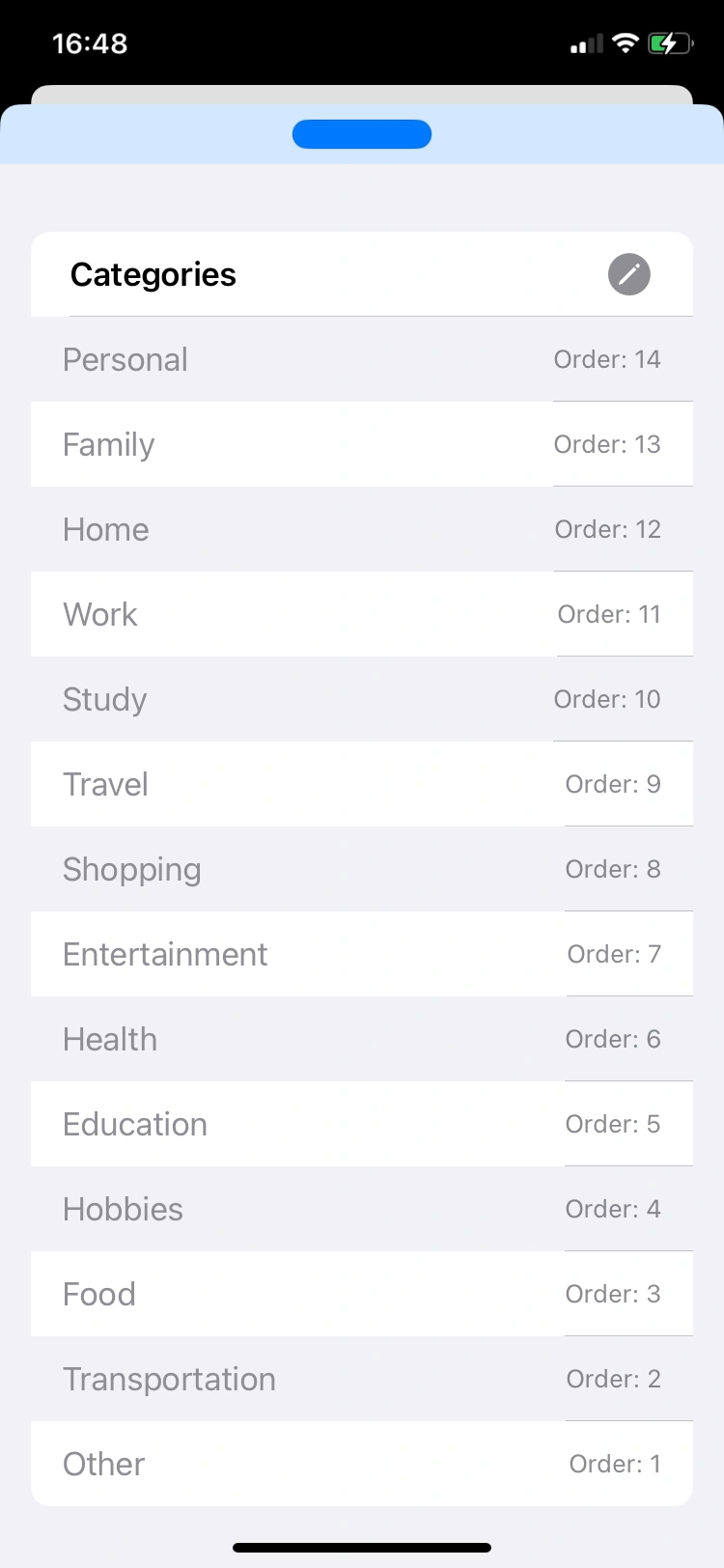
Why my categories are with a different order?
Categories v1.0
- In settings the order for categories was in descendent order, meaning the order 1 was for the last one.
- This also affected the order for the goals.
Categories v1.1+
- Now the order for categories is in ascendent order, meaning the order 1 is for the first one.
- This also affects the order of goals.
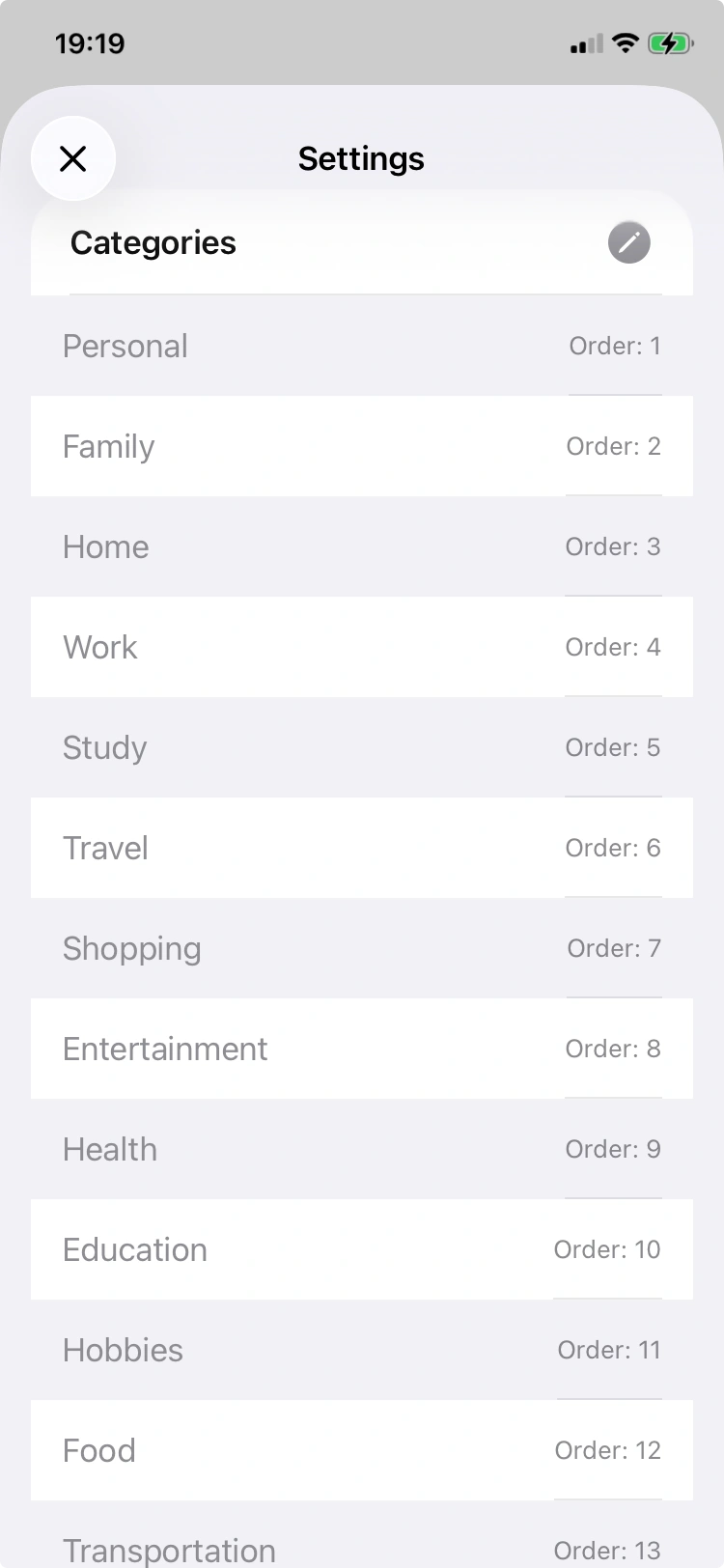
Make sure to go to Settings, edit the categories, and change the order of one so they update correctly.
Version History
-
1.4
- Compatible with iPad and iPhone.
- Weekly report delivered every Sunday at 9:40 AM, including key insights and interpretations of your progress.
- "Close Goal" button to maintain continuity and "Export Goal" button at the bottom of the goal detail view.
- Goals and task titles can be copied; task comments are now read-only.
- Haptic feedback: buttons and goal completed/closed confirmations now provide tactile haptic responses for a more engaging experience.
- Notification & badge improvements: the app now recalculates badges more accurately and prevents duplicates.
-
1.3
- Built-in weekly report every Sunday at 9:40 AM with key insights and interpretations for what's done.
- Close goal button to keep continuity and Export goal button at the bottom of Goal detail.
- Copyable read-only goal, and tasks title, also tasks comments.
- Haptics feedback: buttons and goal-complete/close confirmations now produce haptic feedback.
- Improved notifications & badges, the app recomputes badges more accurately.
-
1.2
- Added an info page to explain the icons across the UI.
- Improved recurrence logic and interface for stability.
- Added an end date to stop generation of recurrent goals.
- Advanced warning now shows the date when the next goal will be generated.
-
1.1
- Complete translation into Russian.
- Improvements to the English and Spanish translations.
- Improvements to sorting categories in Settings.
Important: go to Settings, edit the categories, and change the order of one so they update correctly.
- Improvements to sorting goals and recurring generation.
-
1.0
- Initial public release.
Other troubleshooting tips
- Restart the app: Force-quit iClara TM and reopen it to clear transient issues.
- Refresh lists: Pull to refresh on the dashboard to reset badges and re-evaluate overdue state.
- Update the app: Ensure you run the latest version from the App Store.
- Reinstall as last resort: If data is backed up, uninstalling and reinstalling can fix some persistent problems — but ensure you have a backup if you need to keep your data.
Contact support
If you can't resolve an issue using the FAQ, email our support team with details and a diagnostics log.
Email: soporte@iclara.app
When contacting us, please include:
- App version (Settings → About)
- Your device model and iOS version
- A brief description of the issue and the steps you tried
- Attach the diagnostics log if possible (Settings → Diagnostics Log → Share Diagnostics Log)
Quick links
Include logs and a short reproduction sequence for faster support.